Liberty Communication Systems, Inc.
How the network works
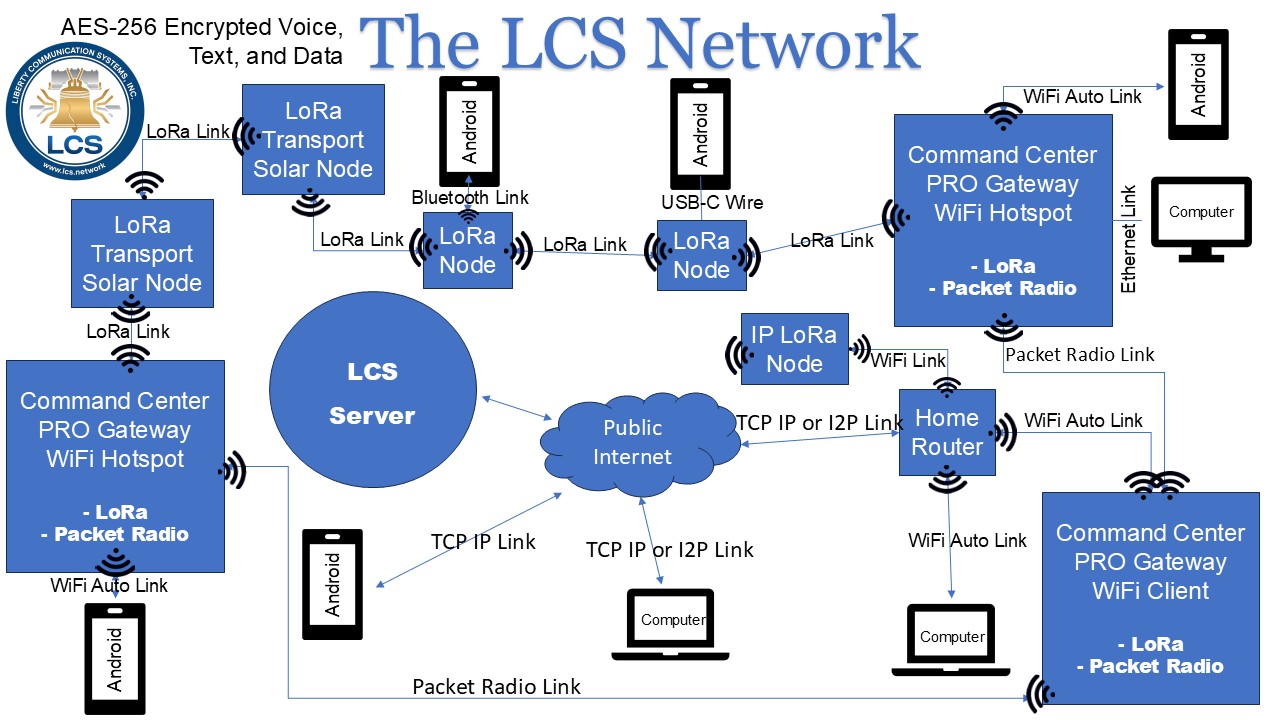
The Reticulum Mesh Network uses multiple interfaces: LoRa, Packet Radio(PTT), TCP over IP link, I2P, Servers(like our own server: public.lcs.network) and Wifi!
Messages are sent and received from hash addresses. All communications are AES-256 encrypted. Only the announce name and destination are publically disclosed. The contents of messages are secured. Voice calls, messaging, and files!
The Reticulum Network communicates over the LoRa interface using several different nodes: Client, Transport, Propagation. A client node is the basic node the end user must have. A transport node acts as a repeater to extend the network. A Propagation node stores messages while a user is offline. When it detects that a user is back online the message is delivered. Gateways combine the use of all three to direct messages to their correct destination, storing undeliverable messages and allowing the end user access through wifi or ethernet. Gateways also intelligently combine other interfaces like Packet (PTT) Radio or TCP IP links to servers all while delivering the messages to their intended destinations!
Download the apps
Messaging apps for communicating over the Reticulum Network.
Liberty Chat
VersionMessaging for Android, built on the official Reticulum stack.
- RNS 1.5.5 and LXMF 1.1.1
- Secure LXST voice calls
- Full duplex calls
- Half-duplex PTT calls over LoRa, with battery saver
- PTT voice messages in low or high quality codec, with autoplay
- Securely send pictures, files and messages
- USB-C and Bluetooth auto-reconnect for disconnected RNodes
- TCP client interface for reaching others on the LCS server gateway
- Pre-programmed list of optional TCP clients including the IPRNode and Command Center PRO
- Auto-probes for destination on failed send for when the route has changed
Android blocked the download or install? Here’s how to continue
Liberty Chat is installed directly rather than through the Play Store, so Android shows a few warnings along the way. They appear for every app installed this way and are not a sign that anything is wrong. The exact wording varies by phone and Android version.
-
While downloading. Your browser may say the file
can harm your device
or ask you to confirm the download. Choose Download anyway or OK. - Opening the file. Tap the finished download in your notifications, or find it in Files > Downloads and tap it.
-
Unknown apps. Android says
your phone is not allowed to install unknown apps from this source
. Tap Settings, turn on Allow from this source, then press back. -
Play Protect. You may see
Unsafe app blocked
or a prompt to send the app for scanning. Tap More details, then Install anyway. If you are offered a scan, you can decline it and continue. - Install. Tap Install, then Open when it finishes.
Once installed, grant the permissions Liberty Chat asks for. Notifications are needed for incoming messages, microphone for voice calls, and nearby-device or location permission for Bluetooth to find your RNode.
LCS MeshChat
VersionDesktop messaging for Windows, macOS, and Linux. Pick the build that matches your machine.
- RNS 1.5.5 and LXMF 1.1.1
- LXST secure voice calls, v0.5.3
- Full duplex calls
- Half-duplex PTT calls over LoRa
- Securely send pictures, files and messages
- Option to run a propagation node to store undelivered messages
- TCP client interface for reaching others on the LCS server gateway
- Easy "Add LCS Interface" button to quickly add new interfaces, including IPRNode and Command Center PRO>
- Built-in console and websocket for remote management of transport nodes
- Audible new message alert
- Auto-probe for destination on failed send when the route has changed
Windows blocked the download or install? Here’s how to continue
Windows warns about any installer it has not seen many times before. LCS MeshChat is a small independent release, so these warnings are expected. The exact wording varies by browser and Windows version.
-
While downloading. Edge or Chrome may say the file
isn’t commonly downloaded
and hide it. Open your downloads list, click the three dots beside the file, and choose Keep. If asked again, choose Keep anyway. In Edge you may need Show more first. - Running the installer. Double-click the downloaded .exe file.
-
SmartScreen. A blue window says
Windows protected your PC
. Click More info, then Run anyway. The Run anyway button only appears after clicking More info. - User Account Control. Windows asks whether to allow the app to make changes to your device. Choose Yes.
- Antivirus. If your antivirus quarantines the file, restore it and allow it, then run the installer again.
On first launch, Windows Firewall may ask whether to allow LCS MeshChat to communicate on your network. Allow it on private networks so the app can reach the LCS server gateway and any RNode on your network.
Getting connected
These apps can be used completely off-grid with LoRa or Packet radio, but if you would like to get started right away, you can configure access to the LCS server which will allow communication across the nation immediately.
TCP client setup
-
Open the TCP Client settings:
Liberty Chat: Setting > Network > Manage Interfaces > + > TCP Client > Custom
LCS MeshChat: Interfaces > Add Interface > TCP Client - TCP Host: public.lcs.network
- TCP Port: 1776
-
Save/Restart:
Liberty Chat: Save connection, then Apply & Restart
LCS MeshChat: Save Connection, then Restart RNS
RNode LoRa radio setup
-
Connect RNode:
USB-C cable to your computer or Android.
When prompted, select which app you will use with the RNode.
If using Bluetooth: push the program button for about 5 seconds until the Bluetooth pairing pin opens on the screen. Enable Bluetooth on your phone and pair using the pin number. -
Add/select the RNode LoRa interface:
Liberty Chat: Setting > Network > Manage Interfaces > + > RNode LoRa > click Bluetooth or USB depending on which you’re using
LCS MeshChat: Interfaces > Add Interface > RNode (LoRa) > Select Port Number -
Choose one preset from the table below and enter its details within the app in the
corresponding spaces. Everyone you want to reach must be using the same preset.
Use the correct TX power for your specific RNode model. -
Save/Restart:
Liberty Chat: Save connection, then Apply & Restart
LCS MeshChat: Save Connection, then Restart RNS
RNode LoRa Presets
Every radio must use the same frequency and preset below to communicate. Lower preset numbers are faster but shorter range; higher numbers are slower with greater range.
| Preset | Range & speed | Data rate | Bandwidth | SF | Coding rate | Notes |
|---|---|---|---|---|---|---|
| 1 | Short range, turbo speed | 21.88 Kbps | 500 kHz | 7 | 4/5 (CR=5) | |
| 2 | Short range, fast speed | 10.94 Kbps | 250 kHz | 7 | 4/5 (CR=5) | |
| 3 | Short range, slow speed | 6.25 Kbps | 250 kHz | 8 | 4/5 (CR=5) | Fast service for one street of neighbors with rooftop repeater |
| 4 Default | Medium range, fast speed | 3.52 Kbps | 250 kHz | 9 | 4/5 (CR=5) | Good speed up to 1.5 miles with rooftop repeater |
| 5 | Medium range, slow speed | 1.95 Kbps | 250 kHz | 10 | 4/5 (CR=5) | Slower but reliable; same distance with rooftop repeater |
| 6 | Long range, turbo speed | 1.34 Kbps | 500 kHz | 11 | 4/8 (CR=8) | |
| 7 | Long range, fast speed | 2.15 Kbps | 250 kHz | 11 | 4/5 (CR=5) | Best balance for point-to-point ground radios |
| 8 | Long range, moderate speed | 336 bps | 125 kHz | 11 | 4/8 (CR=8) | |
| 9 | Long range, slow speed | 183 bps | 125 kHz | 12 | 4/8 (CR=8) |
Scroll the table sideways to see every column.
Everyone you want to reach must be using the same preset. The unlicensed US LoRa band is 902 - 928 MHz. Use the correct TX power for your specific RNode model.
Warning
Radio frequency spectrum is a legally controlled resource, and legislation varies widely around the world. It is your responsibility to be aware of any relevant regulation for your location, and to make decisions accordingly.
Hardware, tools, and support
For any questions, contact us through the LCS network server. Copy & paste our LXMF address as a new contact:
199f2de1b645dc0289fbe7058cbe2a50